Hero Blocks
Description
The Hero Section is a component for displaying the introdutory content of each page that uses the inbuilt option for background images.
Hero Section Types:
- Hero-Full: The Hero Full section displays a left aligned column for headline, subheadline and call-to-action button and an optional column for product displaying. The user can also add a Tile Menu widget for creating a navigation tile menu when using only one full-width column.
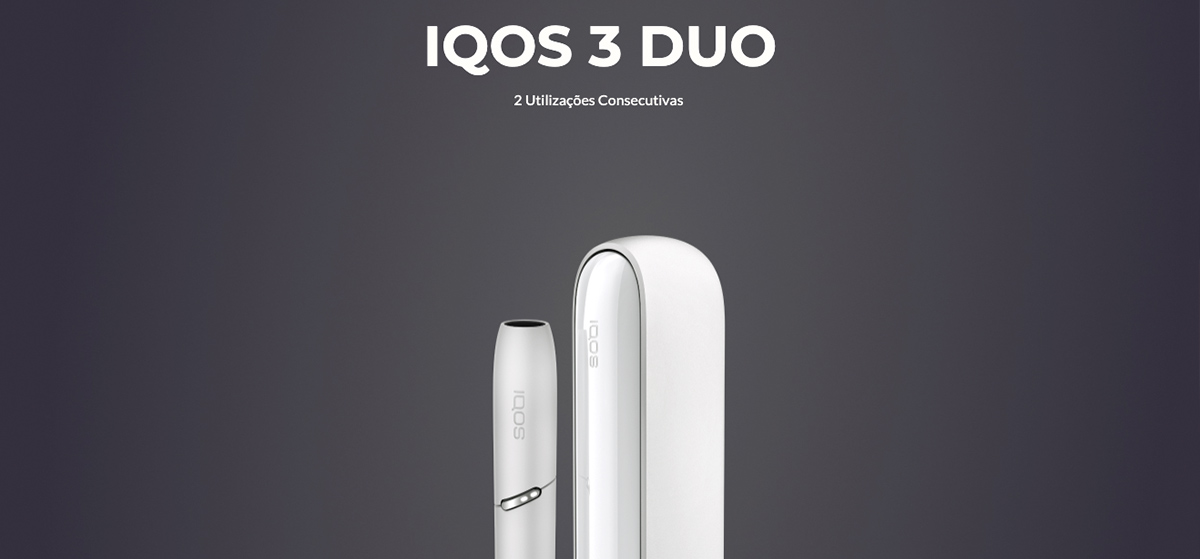
- Hero-Full-Center: The Hero Full Center section displays a single center aligned full-width column for headline, subheadline, call-to-action button and a png image, usually for product displaying.
Hero-Full

Configuration
Create a new Section in the content builder and select the single column layout or the two column layout.
Add a HTML Markup Widget inside the section with the following code:
<input
       name="open-section"
       data-section="hero"
       value="hero-full"
       data-id="hero-banner-header"
/>
Add a Rich Content Editor inside the section.
The headline must be a Heading 1, and the description must have the predefined format.
Use the predefined text format for the call-to-action button and add the link anchor tag to the designated page.

Optionally, a Tile Menu Widget can be added inside the full-width column for displaying a Tile Navigation Menu. The Tile Menu Widget must be configured first in the backend.

The Background image must be added in the builder by uploading it in the Section Style options.
Usage
After including the HTML Markup Widget to inform that the specific element is a Hero Full Section, various css classes can be added to value in order to costumize it.
Background Colors(when there is no background image uploaded):
bg-red
bg-deep-red
bg-turquoise
bg-blue
bg-deep-blue
bg-amber
bg-cream
bg-slate
bg-slate-15
bg-soft-white
Font and button color:
font-slate
Column distribution:
two-cols
Section Height (a css style for minimun height):
h-10
h-20
h-30
h-40
h-50
h-60
h-70
h-80
h-90
h-full
Shadow Overlay(darken or lighten the copy area):
overlay-dark
overlay-light
Hero-Full-Center
Configuration
Create a new Section in the content builder and select the single column layout.
Add a HTML Markup Widget inside the section with the following code:
<input
       name="open-section"
       data-section="hero"
       value="hero-full-center"
       data-id="hero-banner-header"
/>
Add a Rich Content Editor inside the section.
The headline must be a Heading 1, and the description must have the predefined format.

Add another a Rich Content Editor inside the section. Upload a png image with transparent background for the ideal setup.

The Background image must be added in the builder by uploading it in the Section Style options.
Usage
After including the HTML Markup Widget to inform that the specific element is a Hero-Full-Center Section, various css classes can be added to value in order to costumize it.
Background Colors(when there is no background image uploaded):
bg-red
Font color:
font-slate
Section Height (a css style for minimun height):
h-10
h-20
h-30
h-40
h-50
h-60
h-70
h-80
h-90
h-full
Shadow Overlay(darken or lighten the copy area):
overlay-dark
overlay-light