Content Blocks
Description
The Content Block Widget is a component for displaying blocks of information, using two columns of various content.
Content Block Widget types:
- Content Block Video: A Content Block Widget that displays two columns, a video and a copy column.
- Content Block: A Content Block Widget that displays two or single column with Rich Content.
Content Block Video
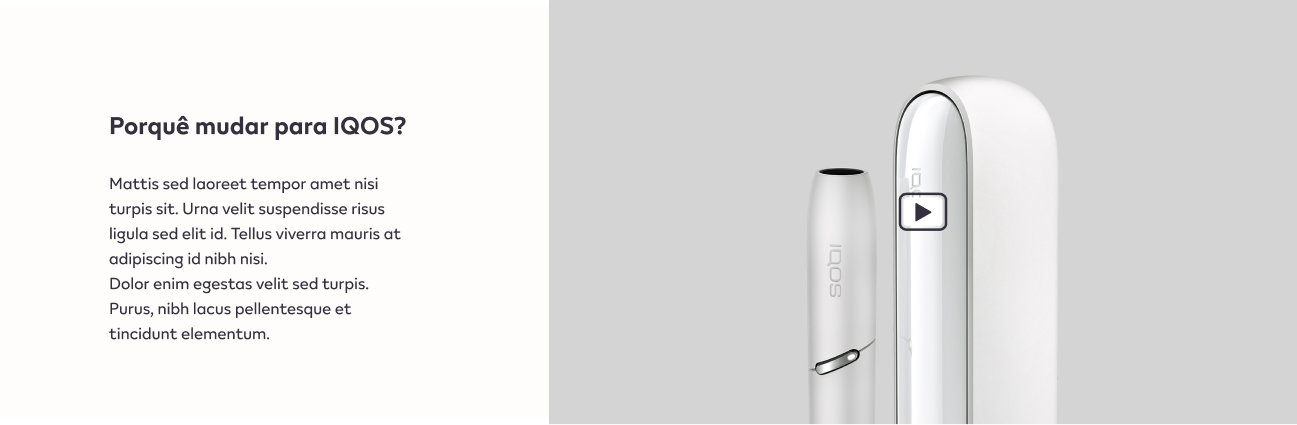
Configuration
Title + Video Content
Create a new Section in the content builder and select the two column layout.
Add a HTML Markup Widget inside the section with the following code:
<input
       name="open-section"
       data-section="content-block"
       value="content-block-video"
/>
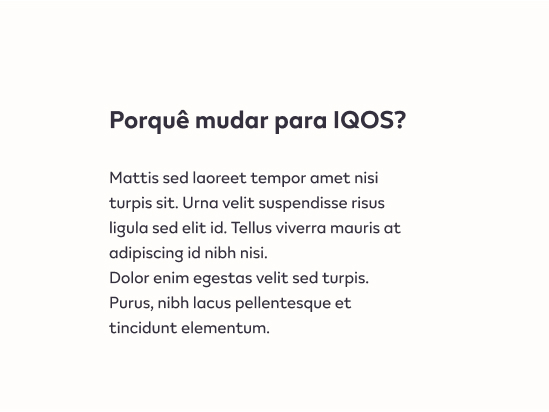
Add a Rich Content Editor inside the section. Can be placed in the first or second column.
The headline must be a Heading 2, and the description must have the predefined format.
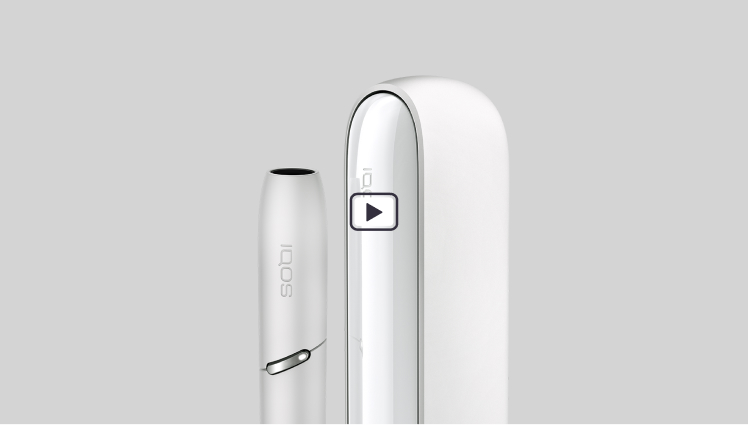
Add a Rich Content Editor inside the section. Can be placed in the first or second column. Import a video source for the video block.
Usage
After including the HTML Markup Widget to inform that the specific element is a Content Block Video Widget, various css classes can be added to value in order to costumize it.
Background Colors:
bg-red
bg-deep-red
bg-turquoise
bg-blue
bg-deep-blue
bg-amber
bg-cream
bg-slate
bg-slate-15
bg-soft-white
Font color:
font-slate
##Content-block